Greeting and contact buttons
Welcome visitors with a greeting, pop it over the chat button after a few seconds, and offer Zalo, Messenger, call and email buttons in the widget.
Updated on
A friendly first line gets more visitors to write. The greeting is the first message a visitor sees in the chat, and contact buttons let people who prefer Zalo, Messenger or a phone call reach you their way. Both are set on the website's page: Customer Support → Channels, then your website, Settings tab.
You need the Manage access level for Customer Support.
Write the greeting
In the Messages card:
- Write Greeting (vi) and Greeting (en), up to 300 characters each. The visitor sees the one in their language. For example: "Mộc Hương xin chào! Bạn cần tư vấn trà hay kiểm tra đơn hàng ạ?"
- Click Save settings.
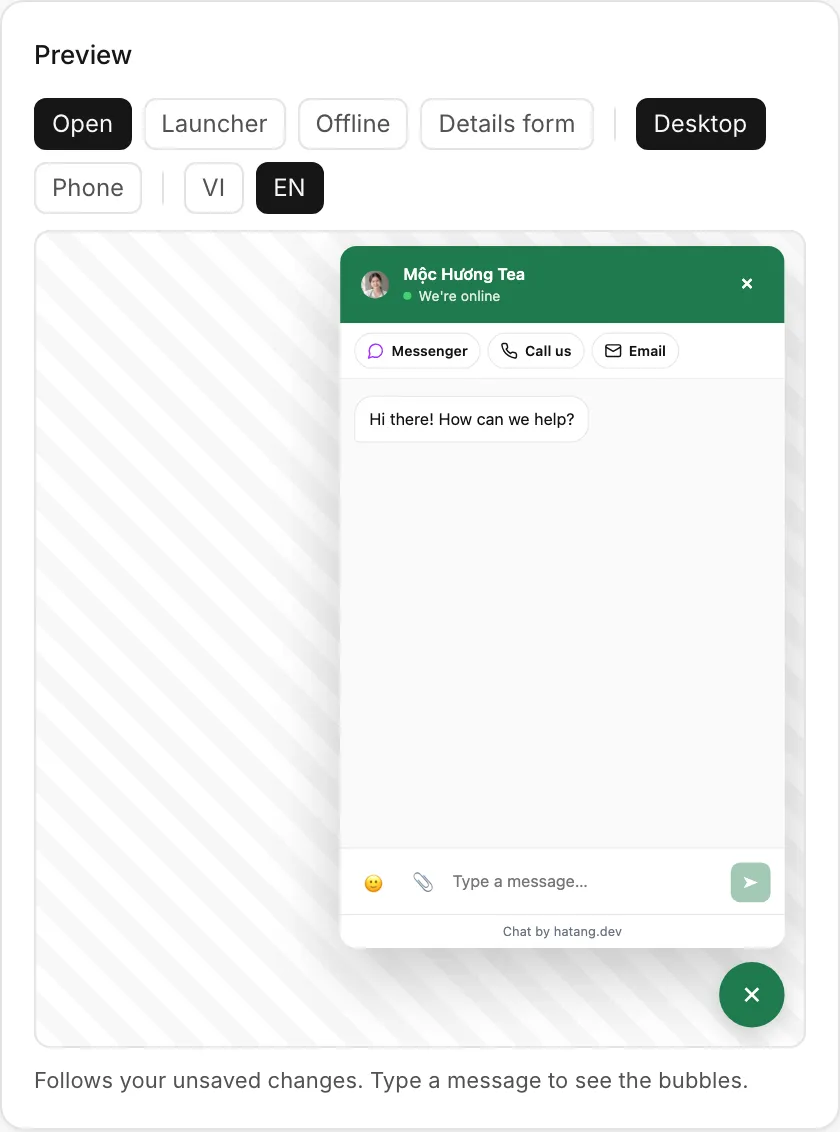
The greeting appears as the first bubble in an empty chat, before the visitor has written anything. It is not saved as a message in the conversation.
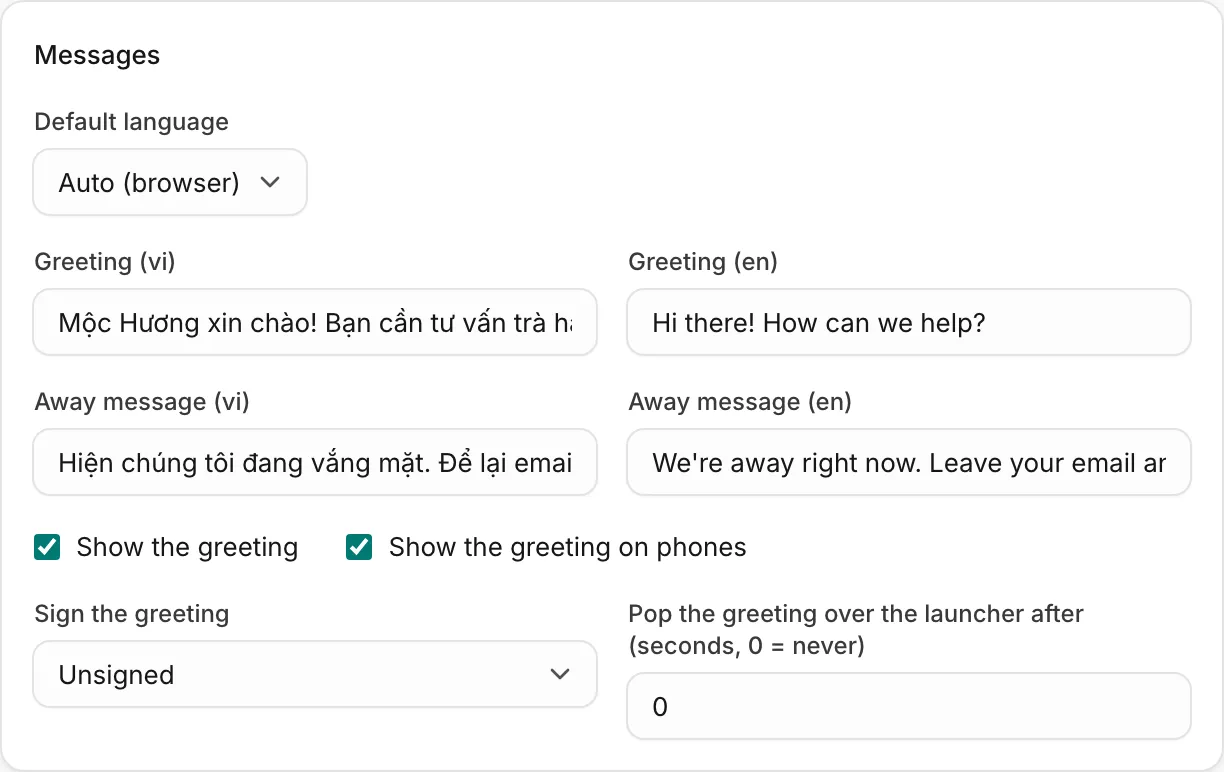
Greeting options
| Option | What it does |
|---|---|
| Show the greeting | On by default. Turn it off to open the chat empty. |
| Show the greeting on phones | On by default. Turn it off to keep the greeting for desktop visitors only. |
| Sign the greeting | Unsigned (default), or An online agent: the name of an agent who is online appears under the greeting, so it reads like a personal hello. When nobody is online, the greeting stays unsigned. |
| Pop the greeting over the launcher after (seconds, 0 = never) | 0 to 120 seconds. After that delay, the greeting pops up in a small bubble above the closed chat button. Clicking it opens the chat. |
The pop-up greeting shows at most once per browser session, and only to visitors who have not started a conversation yet. The visitor can close it with the cross. Ten to twenty seconds works well on product pages: long enough to look around, short enough to catch them before they leave.
The away message
Away message (vi) and Away message (en) sit next to the greetings. They show at the top of the chat while nobody is available. See Office hours and offline messages.
Add contact buttons
The Other contact options in the widget card adds buttons under the widget's header, so visitors can choose another way to reach you:
| Button | What it opens | What you need |
|---|---|---|
| Zalo button | A chat with your Zalo Official Account in Zalo. | A Zalo OA connected to this website. See Connect a Zalo OA. |
| Messenger button | A chat with your Facebook Page in Messenger. | A Facebook Page connected to this website. See Facebook Messenger and Instagram. |
| Phone number (call button) | The phone's dialler with your number. | A number such as 0901 234 567 or +84 901 234 567. |
| Email (email button) | The visitor's email app with your address. | An address such as [email protected]. |
- Tick Zalo button or Messenger button, or fill in the phone number or email.
- Check the result in the Preview.
- Click Save settings.
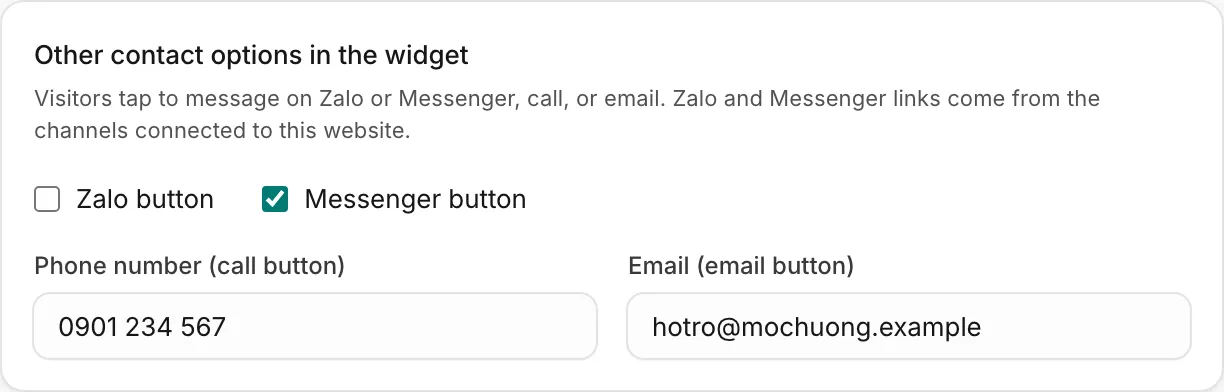
The Zalo and Messenger links come from the channels connected to this website, so you never paste a link. When no Zalo OA or Facebook Page is connected to the website, the option shows not connected and cannot be ticked. A personal Zalo account does not count: the button opens a Zalo OA.
Messages that customers then send on Zalo or Messenger land in the same Inbox, as long as those channels are connected.
Useful next steps
Was this article helpful?
Related articles
- Change how the widget looksSet the widget's colour, theme, position, launcher button, header, language and the pages it shows on, and check every change in the live preview.
- Office hours and offline messagesDecide when the widget shows as online, what visitors see when your team is away, and how you hear about messages that arrive after hours.
- Connect a Zalo Official AccountMessages customers send to your Zalo OA land in the inbox, and your team replies from Ha Tang within Zalo's 48-hour window.
- Connect Facebook Messenger and InstagramConnect a Facebook Page and its linked Instagram account so Messenger and Instagram messages land in the inbox, and answer comments automatically.
Not finding what you are looking for?
Our team answers in the chat, in English or Vietnamese.