Office hours and offline messages
Decide when the widget shows as online, what visitors see when your team is away, and how you hear about messages that arrive after hours.
Updated on
On this page
Visitors write at any hour. Office hours tell them when to expect a reply, and the offline settings make sure a message sent at 11 p.m. still reaches someone in the morning. Everything is in the Availability card on the website's page: Customer Support → Channels, then your website, Settings tab.
You need the Manage access level for Customer Support.
When the widget is online
The widget shows as online when either:
- the AI assistant answers visitors (its mode is when offline or first responder), or
- it is within your office hours (or you have not set any) and at least one agent is online in Ha Tang.
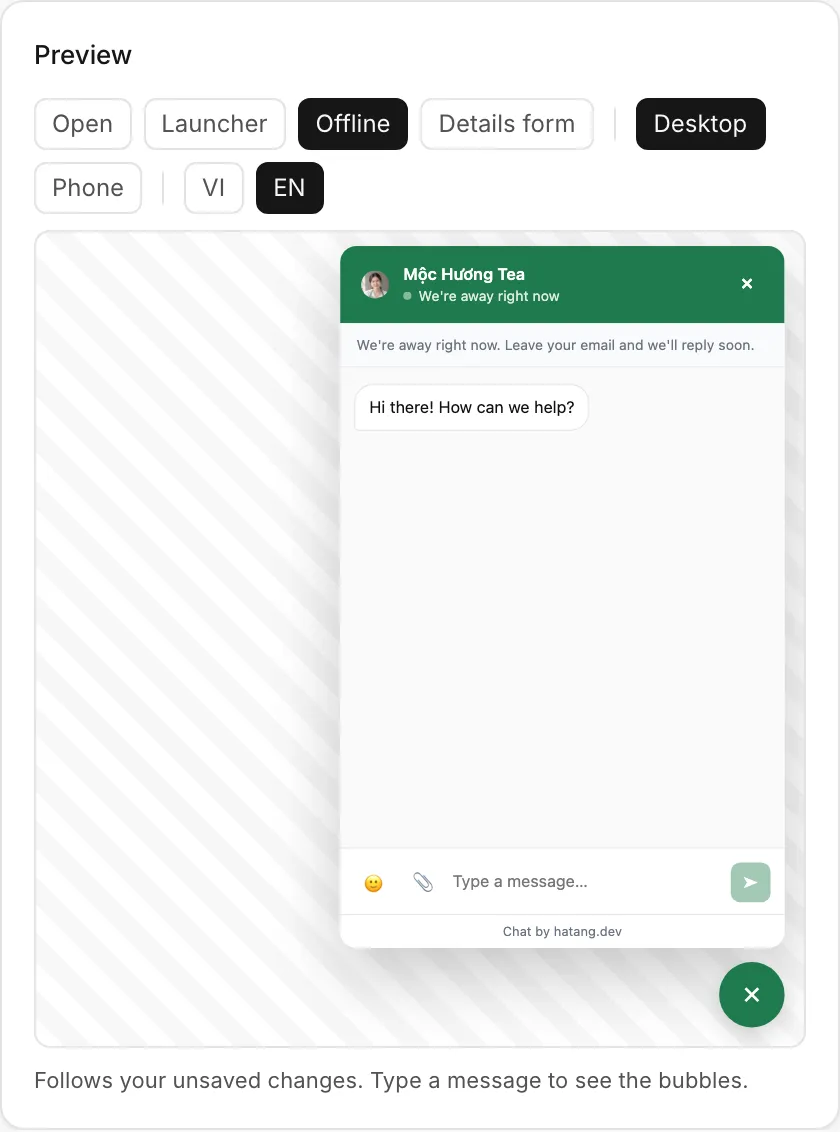
An agent counts as online while they have the Ha Tang dashboard open, or the Ha Tang app open on their phone or Mac. Otherwise the widget is offline: the header says "We're away right now", the away message shows at the top of the chat, and the visitor is asked for an email according to When nobody is online.
The Availability card shows the AI assistant's current mode. The mode is set for the whole business under Customer Support → AI assistant.
Set your office hours
- Tick Use office hours (outside them the widget shows the away message).
- Check Timezone. The default is
Asia/Ho_Chi_Minh. - Tick the days you work and set the times, for example 08:00 to 21:00. Each day has one time range.
- Under Holidays (YYYY-MM-DD, comma-separated), list the days you are closed, for example
2027-02-05, 2027-02-06, 2027-02-07for Tết. Up to 60 dates. - Click Save settings.
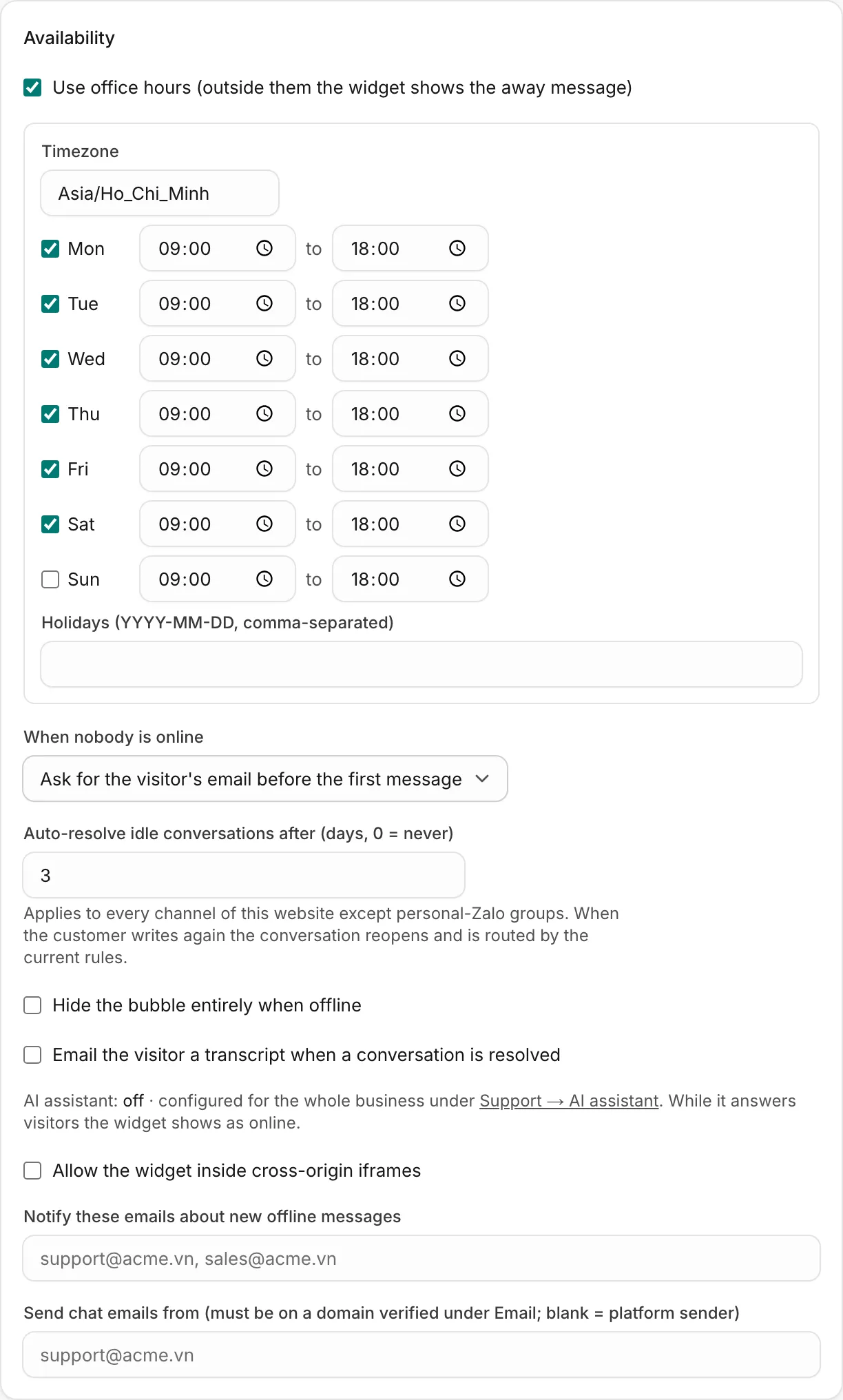
Outside office hours, the widget is offline even if an agent is online, and the header shows "We're away right now" with the day and time you are back.
When nobody is online
When nobody is online decides what happens when a visitor writes while you are offline:
| Choice | What the visitor sees |
|---|---|
| Ask for the visitor's email before the first message (default) | "Leave your email to get a reply". The message is sent once they enter an email. |
| Ask, but allow skipping | The same question with a Skip link. |
| Just accept the message | Nothing extra; the message is sent at once. |
Visitors whose email you already know, and visitors who gave a phone number in the contact details form, are not asked.
Write the text visitors see at the top of the chat in Away message (vi) and Away message (en) in the Messages card, for example "Mộc Hương đang nghỉ, bạn để lại email hoặc số điện thoại, sáng mai shop gọi lại nhé."
More offline options
| Setting | What it does |
|---|---|
| Hide the bubble entirely when offline | Removes the widget while you are offline. Visitors who already have a conversation still see it. |
| Notify these emails about new offline messages | Up to 20 addresses, separated by commas, that get an email when a message arrives while you are offline. |
| Email the visitor a transcript when a conversation is resolved | Sends the visitor a copy of the conversation when it is resolved, if their email is known. |
| Send chat emails from | The sender address of chat emails to visitors. It must be on a domain verified under Email; leave it blank to use Ha Tang's sender. |
| Auto-resolve idle conversations after (days, 0 = never) | Default 3. Conversations with no activity for that long are resolved. It applies to every channel of this website except personal Zalo groups. When the customer writes again, the conversation reopens and is routed by the current rules. |
| Allow the widget inside cross-origin iframes | Off by default. Turn it on only if your website shows its pages inside another website's frame. |
Replying after hours
Messages sent while you are offline wait in the Inbox like any other conversation. When an agent replies to a visitor who has left the website, the visitor gets the reply by email (if their email is known) with a link back to the chat. See Notifications not arriving if your team does not hear about new messages.
Useful next steps
Was this article helpful?
Related articles
- Greeting and contact buttonsWelcome visitors with a greeting, pop it over the chat button after a few seconds, and offer Zalo, Messenger, call and email buttons in the widget.
- Ask for contact details with the first messageTurn on the contact details form to collect a visitor's name, phone number or email when they send their first message, so you can reach them even after they leave.
- How the AI assistant worksWhat the AI assistant answers, what it knows, when it hands a conversation to your team, and what it costs.
Not finding what you are looking for?
Our team answers in the chat, in English or Vietnamese.