Ask for contact details with the first message
Turn on the contact details form to collect a visitor's name, phone number or email when they send their first message, so you can reach them even after they leave.
Updated on
On this page
Many visitors write one message and close the tab. With the contact details form, the widget asks for a name, phone number or email when the visitor sends their first message, and sends the message once they fill it in, so your team can call or write back later. Visitors can open the chat and read your greeting without filling in anything. The answers are saved on the customer's profile.
You need the Manage access level for Customer Support.
Turn on the form
- Go to Customer Support → Channels, click your website and stay on the Settings tab.
- In the Contact details form card, tick Ask for details when the visitor sends their first message.
- For Name, Phone and Email, choose Don't ask, Optional or Required.
- Click Details form above the Preview to see the form, then click Save settings.
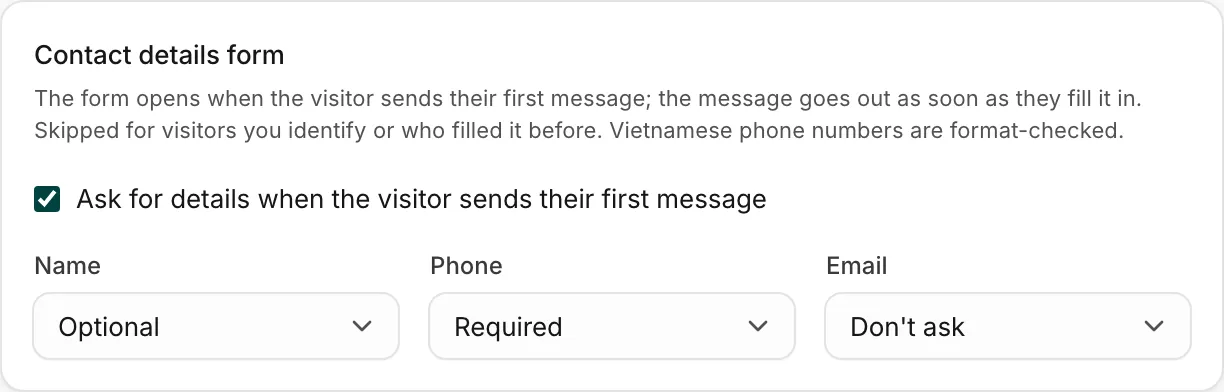
When you first turn the form on, Name is optional, Phone is required and Email is not asked. Phone first suits most Vietnamese shops: customers answer a call or a Zalo message faster than an email.
What the visitor sees
The visitor opens the chat, sees your greeting and types a message. When they send it, the widget asks "Tell us how to reach you" with the fields you chose. Optional fields are marked as such. After they click Start chat, the message they typed goes out and the conversation starts.
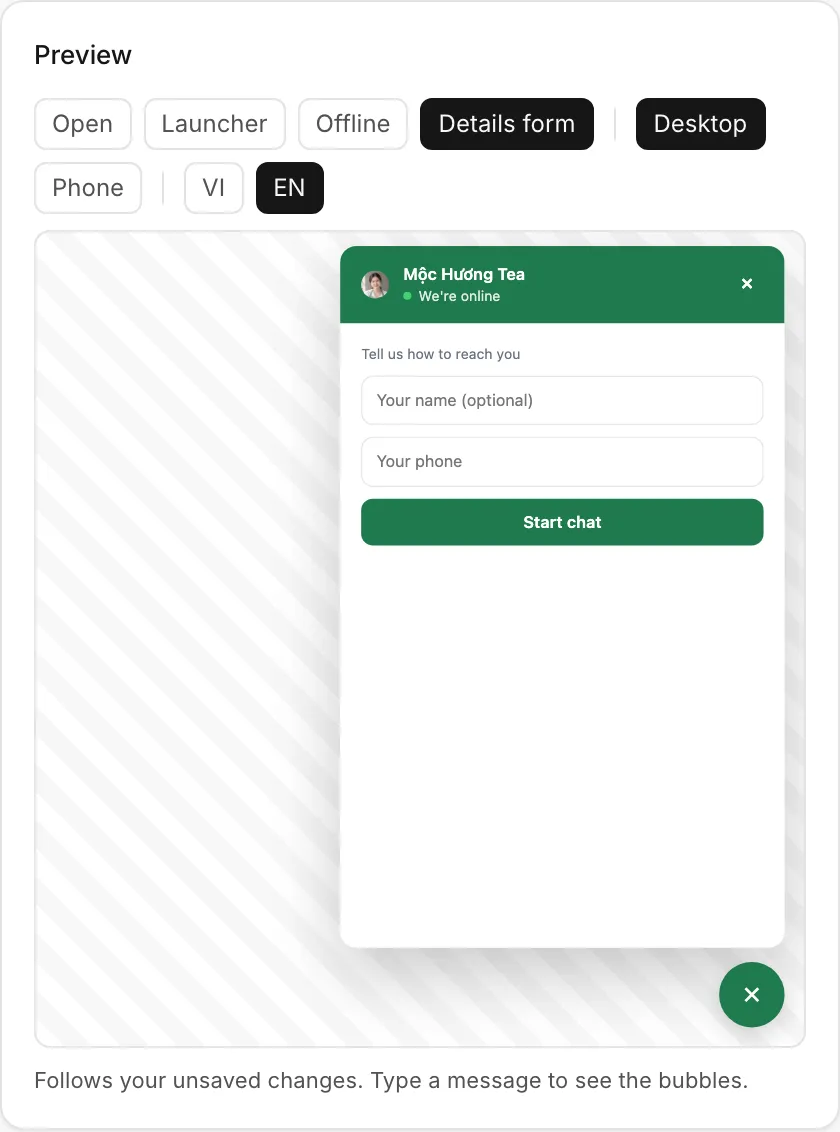
Phone numbers are checked as they are entered: a Vietnamese number (starting with 0, 84 or +84) must be a valid 10-digit mobile number, and a foreign number needs 8 to 15 digits. Otherwise the form shows "That phone number doesn't look right".
When the form is skipped
The widget asks only for what it does not know yet:
- A visitor who filled in the form before, in the same browser, is not asked again.
- Visitors your website signs in and identifies with a signature never see the form. See Recognise logged-in users.
- Fields the widget already knows are left out. If none of the remaining fields is required, the form is skipped.
- Visitors who already have a conversation are not asked.
Where the answers go
The name, phone and email are saved on the visitor and on the customer profile, and your team sees them in the customer panel next to the conversation. If a customer with the same phone or email already exists, the visitor is linked to them, unless that customer is a signed-in user of your website: details typed into a form are never enough to see a signed-in customer's history. See Customer profiles.
The contact details form and offline messages
When nobody is online, the widget can also ask for an email with the first message (see Office hours and offline messages). A phone number from the contact details form is enough: a visitor who left their phone is not asked for an email as well.
Useful next steps
Was this article helpful?
Related articles
- Office hours and offline messagesDecide when the widget shows as online, what visitors see when your team is away, and how you hear about messages that arrive after hours.
- Recognise logged-in usersLet your website tell the widget who a signed-in customer is, so your team sees their name and history and the inbox marks them as verified.
- Customer profilesEvery person who writes to you gets one profile across all channels, with contact details, stage, owner, labels, notes and history.
Not finding what you are looking for?
Our team answers in the chat, in English or Vietnamese.