Find your way around the dashboard
The sidebar, the business and app menus, the search box (⌘K) and your account menu - where everything is in Ha Tang.
Updated on
On this page
Everything in Ha Tang is reached from the sidebar on the left. This tour shows its parts from top to bottom, and the search box that takes you anywhere in two keystrokes.
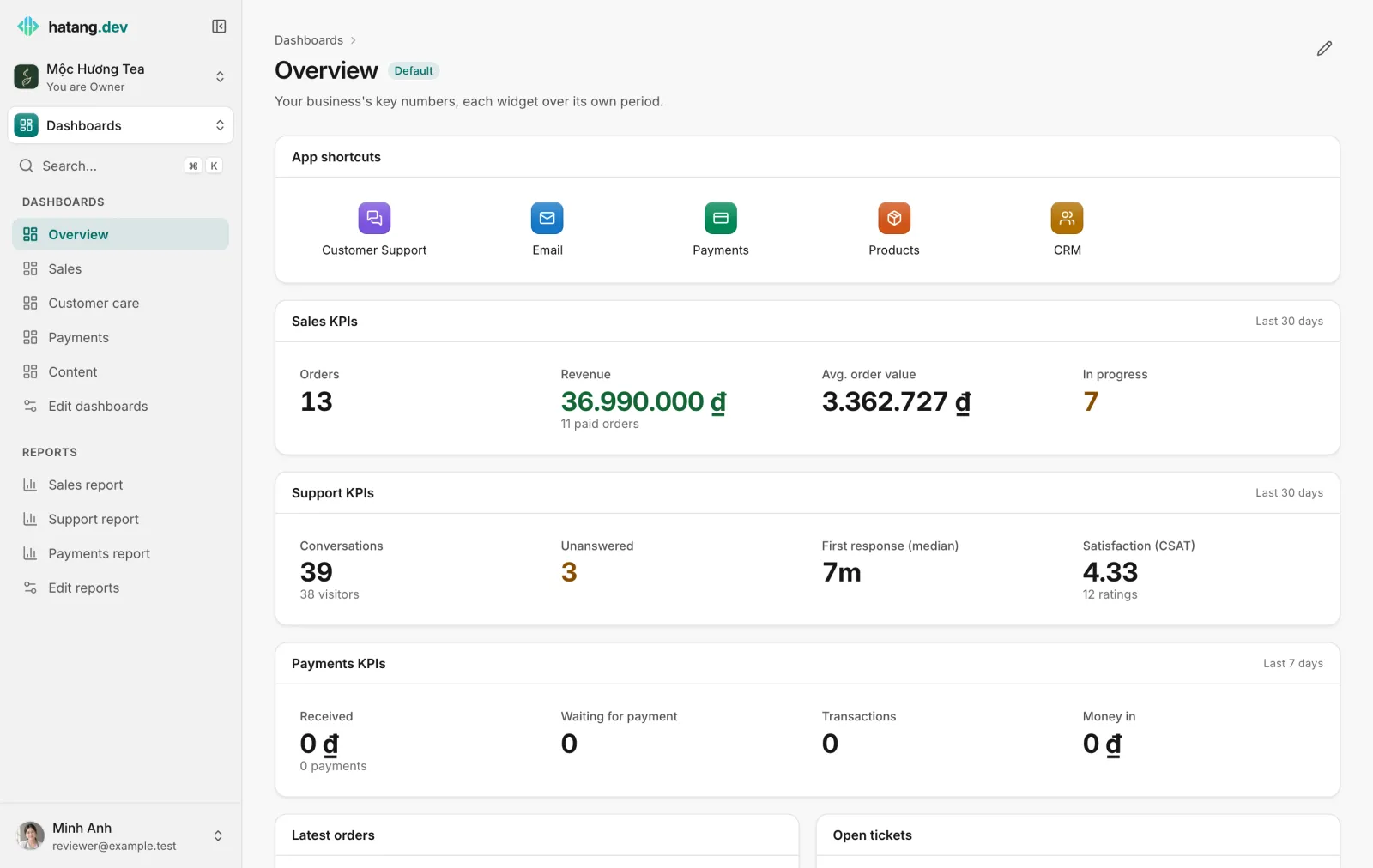
The home page: dashboards
When you sign in, Ha Tang opens your business's default dashboard, Overview: the key numbers of each module you use, such as orders and revenue, conversations and response times, payments received. Other dashboards and Reports are listed in the sidebar. Owners and admins can edit them with Edit dashboards and Edit reports.
The sidebar, top to bottom
| Part | What it does |
|---|---|
| Business menu (business name, with You are … below it) | Shows which business you are in and your role there. Click it to switch business, open Business settings or create a New business (Work in several businesses) |
| App menu (just below) | Switches between Dashboards, the apps you can use (Customer Support, Email, Payments, Products, CRM), All apps and Settings |
| Search… | Opens the command palette (see below) |
| The menu of the open app | The pages of that app. In Customer Support: Inbox, Live, My tasks, Tickets, Reports, Channels and so on |
| Your name (at the bottom) | Your account menu: Settings, Help center, Theme, Language and Sign out |
You only see the apps your business has turned on and that your access allows. If an app or a page is missing, see Employees and roles.
Settings in the app menu holds what belongs to the whole business: API Keys, Webhooks, Employees and Business settings.
To get more room, collapse the sidebar to icons with the button next to the Ha Tang logo, or press ⌘B (Ctrl+B on Windows). On a phone, the sidebar opens from the menu button at the top left.
Search and commands: ⌘K
Press ⌘K on a Mac or Ctrl+K on Windows, or click Search… in the sidebar.
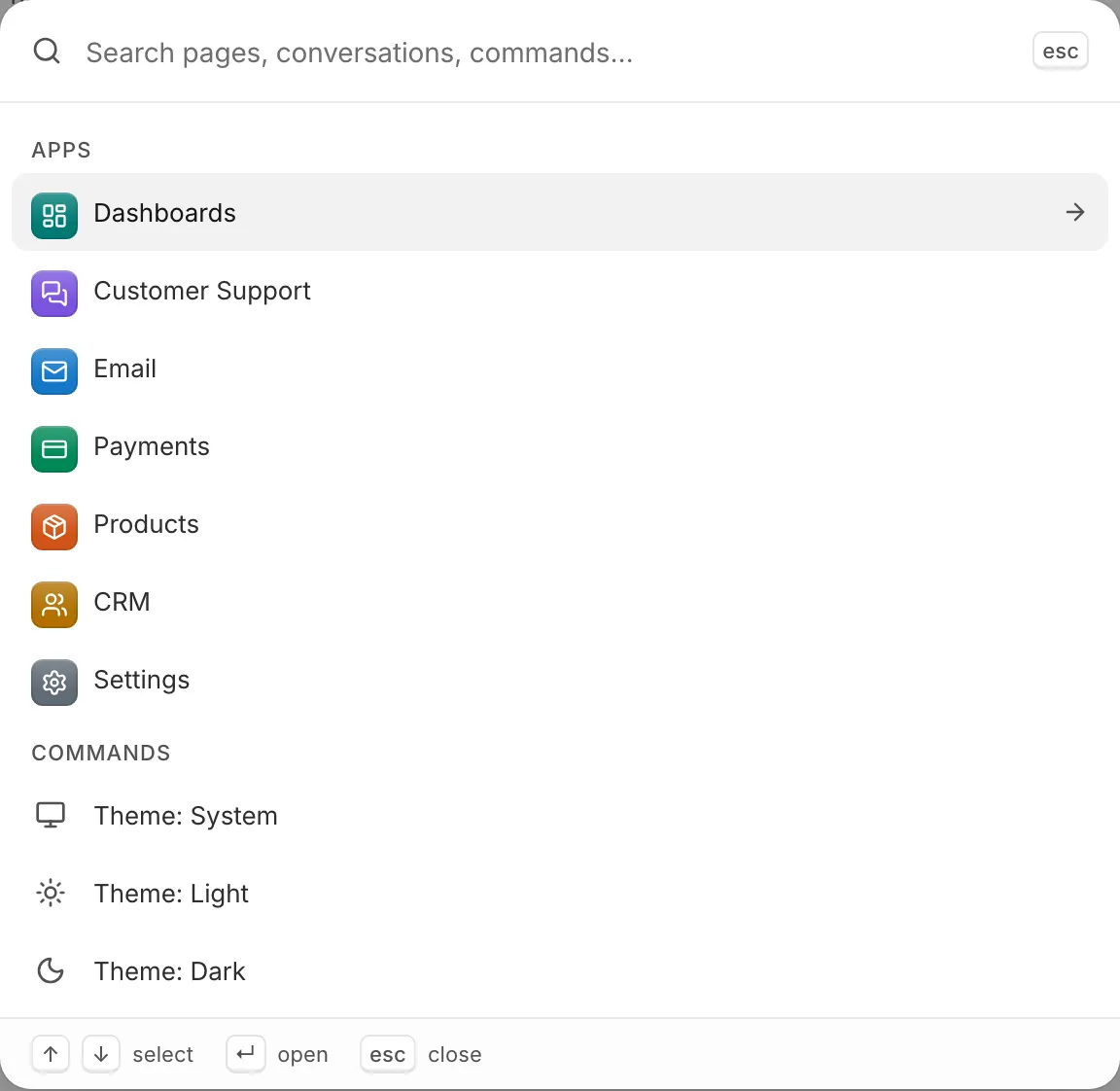
Type what you are looking for. The palette finds:
- Pages of every app you can open, for example
channels,cannedortransactions. - Conversations, by the customer's name, phone number, email or anything that was said.
- A Search customers for "…" command that opens your customer list filtered by what you typed.
- Businesses you work at, as Switch to ….
- Commands: change the theme or language, collapse the sidebar, show the keyboard shortcuts, sign out.
Vietnamese works with or without accents: hoi thoai finds Hội thoại. Use the arrow keys to move, Enter to open and Esc to close.
Keyboard shortcuts
| Shortcut | What it does |
|---|---|
| ⌘K / Ctrl+K | Open the command palette |
| ⌘B / Ctrl+B | Collapse or expand the sidebar |
| ? | Show all keyboard shortcuts (outside a text field) |
The inbox has more shortcuts of its own (Inbox keyboard shortcuts).
Your account menu
Click your name at the bottom of the sidebar:
- Settings opens your personal notification settings (Your notification settings).
- Help center opens these articles in a new tab.
- Theme and Language change how the dashboard looks and which language it speaks (Language and theme).
- Sign out ends your session in this browser.
Useful next steps
Was this article helpful?
Related articles
- Language and themeUse the dashboard in Vietnamese or English, in light or dark mode. Each person chooses for themselves.
- Work in several businessesOne Ha Tang account can work at several businesses. Switch between them from the business menu or with ⌘K, and create a new one.
- Keyboard shortcutsMove through the inbox, resolve, assign and reply without the mouse.
Not finding what you are looking for?
Our team answers in the chat, in English or Vietnamese.