Leave or delete a business
How to stop working at a business, hand it over to a new owner, delete a business for good, or delete your whole account.
Updated on
On this page
There are three different things you may want: to stop working at a business, to delete a business with all its data, or to delete your own Ha Tang account. This article covers each one.
Leave a business
Anyone who works at a business can leave it by themselves:
- Open Settings → Business settings.
- On the General tab, find Leave business and click Leave business.
- Click Leave … to confirm.
You lose access at once. Your open conversations go back through the distribution rules to the rest of the team, and your open tasks move to an owner. The dashboard opens your next business (or the screen to set up a new one), and the business disappears from your business menu. Your other businesses are not affected. To come back, someone has to invite you again.
If you are the only owner, the button is off, because a business always keeps at least one owner. Make another person an owner first (Settings → Employees → Edit access → Role → Owner), or delete the business.
An owner or admin can also remove you: in Settings → Employees they click Remove in your row. Your tasks then move to the person who removed you.
Hand the business over to a new owner
When you sell a shop or change who runs it:
- Invite the new owner with the role Owner, or change their role to Owner with Edit access (Invite employees).
- Check that they can sign in and see everything.
- Leave the business yourself (see above), or ask them to change your role to Admin or Member if you stay on.
Admins cannot create owners; only an owner can.
Delete a business
Deleting removes the business with everything it holds: customers, products, orders, conversations, emails, payments, API keys and webhooks. Your widgets and integrations stop working immediately. This cannot be undone. Only owners can delete a business.
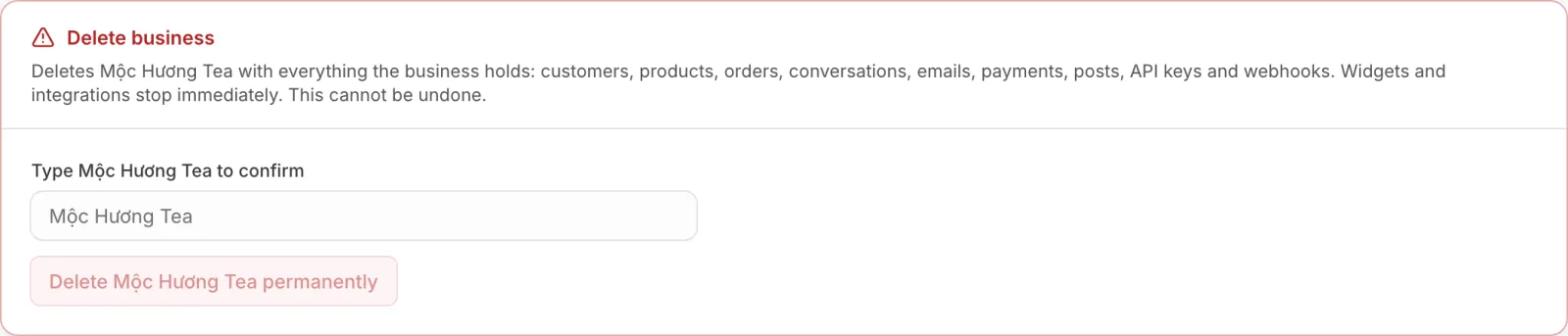
- Open Settings → Business settings.
- At the bottom of the General tab, find Delete business.
- Type the business name exactly as shown in Type … to confirm.
- Click Delete … permanently.
Afterwards the dashboard opens your next business, or, if you have none left, the screen to set up a new one. Your employees lose access at once.
If you only want to stop using one part of Ha Tang, turn that module off instead: its data is kept and you can turn it back on later (Turn modules on and off).
Delete your account
Deleting your account removes your sign-in, your sessions and your devices for good, and signs you out everywhere.
On the dashboard:
- Open Settings → Business settings and the Account tab.
- Under Delete account, read which businesses go with your account and which ones you leave.
- Click Delete account, type your email address and click Delete permanently.
The sign-in page opens afterwards. You can also:
- In the Ha Tang app for iPhone, Android or Mac: open the account screen (More on the phone) and tap Delete account, then Delete permanently.
- Write to [email protected] from your account's email address and ask for your account to be closed.
Your sign-in email cannot be changed. To move to a new address, see Sign in and sign out.
Businesses that only you own and where nobody else works are deleted together with your account. If a business you own has other employees, the deletion is refused until you name another owner or remove the other employees, so a team is never left without an owner.
Troubleshooting
| Problem | Cause | What to do |
|---|---|---|
| No Delete business card | You are not an owner | Ask an owner |
| Type the business name exactly (…) to confirm | The name you typed differs, for example in accents or spaces | Copy the name from the label above the field |
| A business needs at least one owner | You tried to remove or downgrade the last owner | Make someone else an owner first |
| Leave business is greyed out | You are the only owner | Make someone else an owner, or delete the business |
| Account deletion is refused with a business name, or Delete account is greyed out | You are the only owner of that business and it has other employees | Name another owner of that business, then try again |
| The email address you typed does not match your account | A typo in the confirmation | Type the address shown on the Account tab |
Was this article helpful?
Related articles
- Business settingsChange your business's name, its address in dashboard links and its logo, and choose which modules are on.
- Employees and rolesWho can do what in your business. Owners, admins and members, the four access levels and the quick templates.
- Handle data requestsWhat to do when a customer asks to see, correct or delete their data, and how to ask Ha Tang about your own data.
Not finding what you are looking for?
Our team answers in the chat, in English or Vietnamese.